Sign In
 Sign In
How-to set up debit card controls.
Lock or unlock your ScotiaCard™ Visa® DEBIT.
Let's get started.
Follow the steps below.
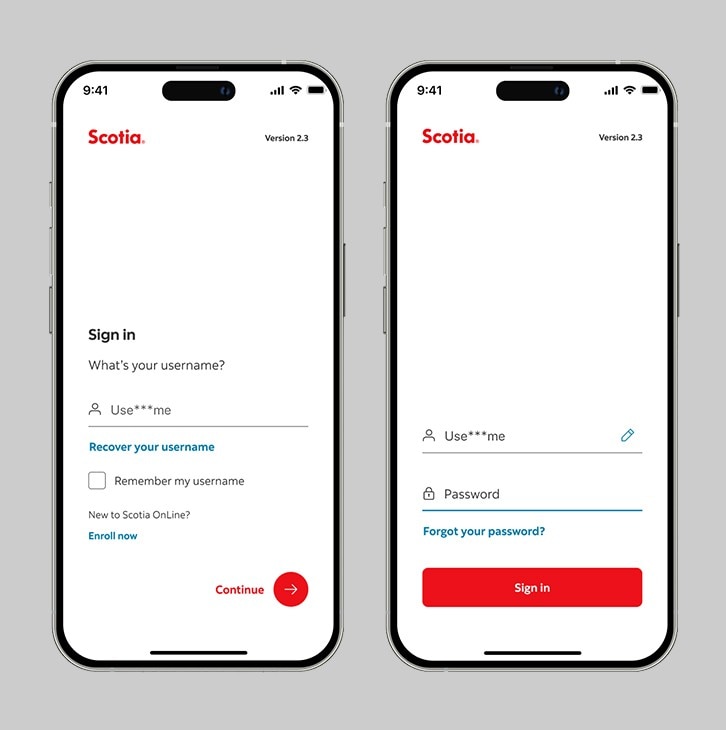
Step 1 - Launch the App and sign in.
Launch the Scotia Caribbean app and sign in. Depending on your security settings, you will need to verify your identity through FACE ID, Touch ID or by entering a verification code, sent to your registered email.
You should receive your verification code in your email's inbox immediately. If after a couple minutes, it's still not there, click the "Send me a verification code" link.
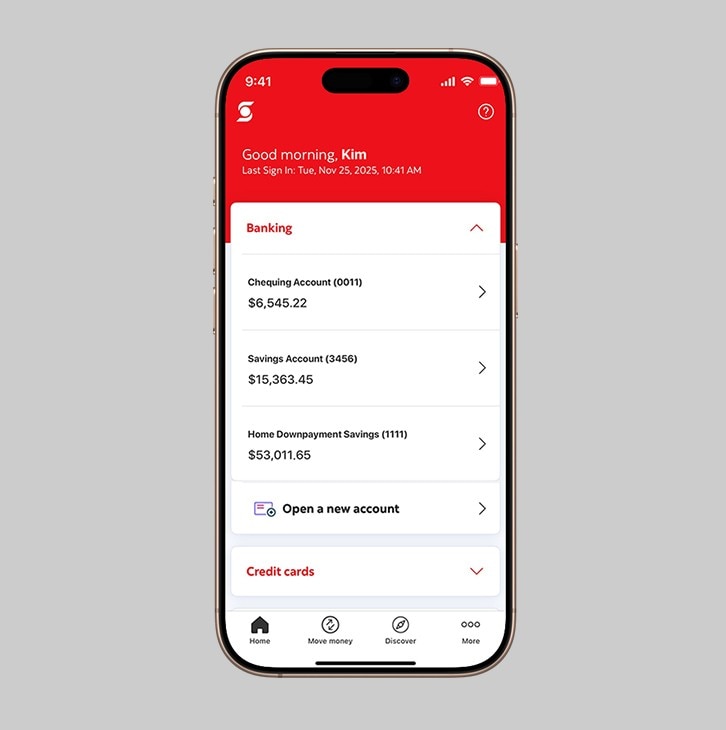
Step 2 - Tap on the 'Banking' dropdown.
In this dropdown, you'll be able to view all your chequing or savings accounts. Select the account for which you'd like to set up debit card controls.
Step 3 - Tap on the settings icon.
At the top right corner of your screen, tap on the Settings icon (it looks like a wheel).
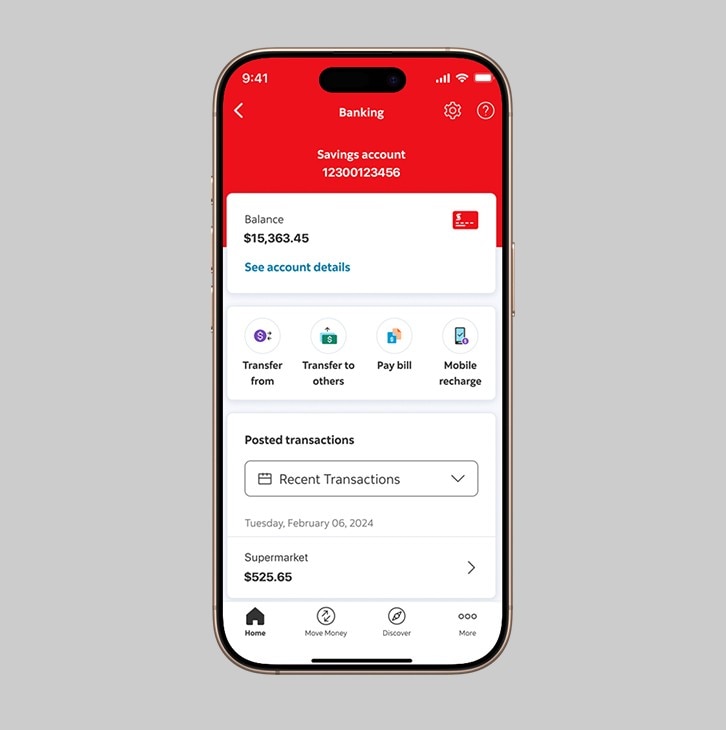
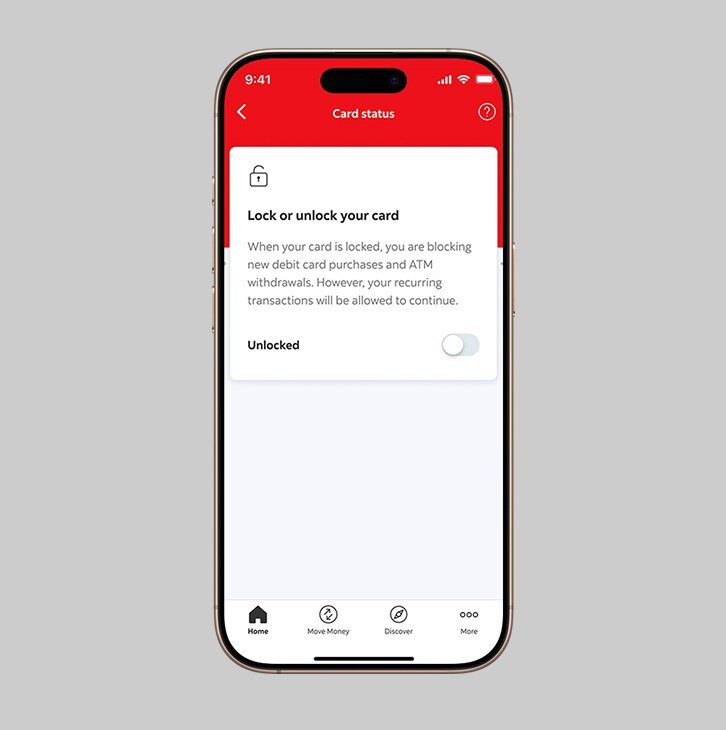
Step 4 - View your card status.
By default, your card status will be set to Unlocked. Tap on Card status to explore your options.
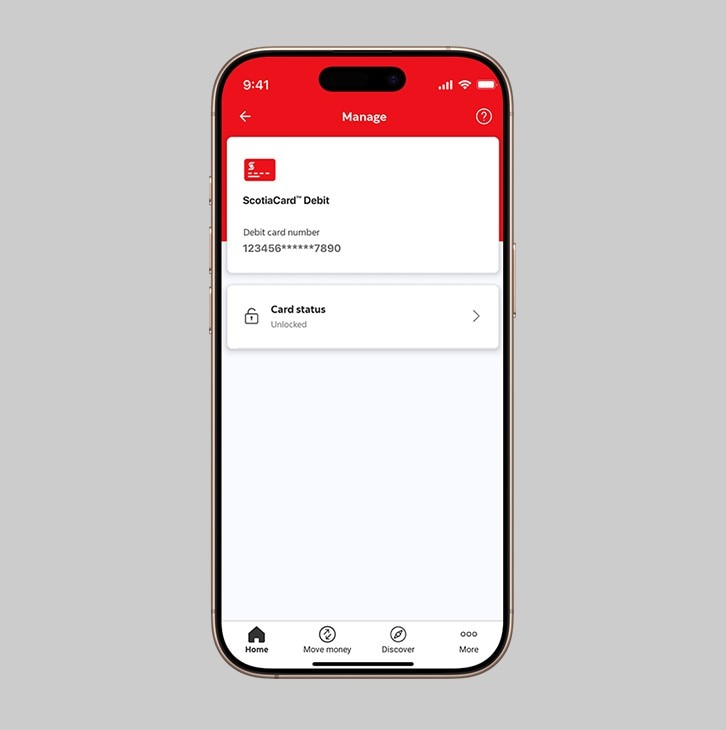
Step 5 - Success! Now, you can set up your debit card controls.
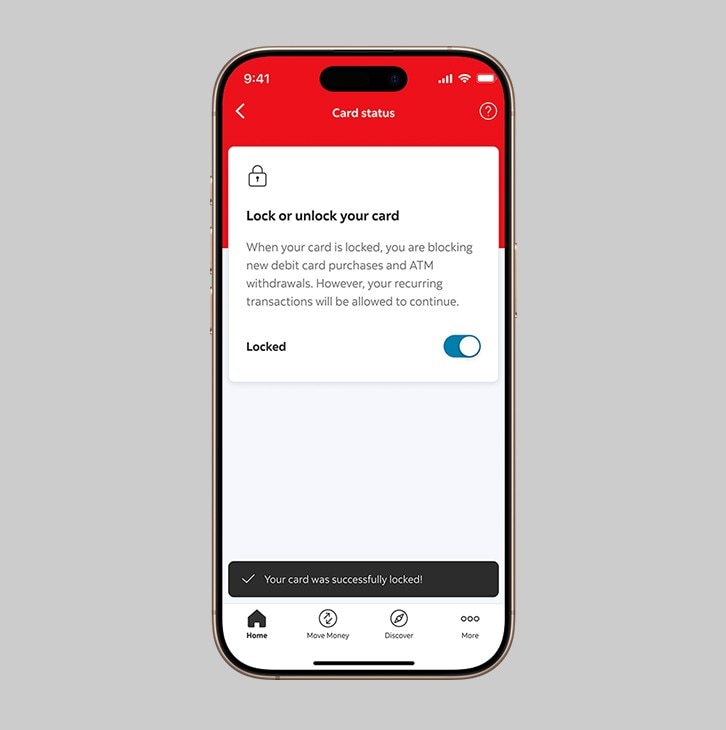
Once you tap on Card status, you'll be able to set your controls:
- Swipe right to lock your card.
- When your card is locked, swipe left to unlock.
Note: When your debit card is locked, you are blocking new debit card purchases and ATM withdrawals. Any recurring transactions you have set up will continue.